|
|
Installation
| >>> Installing LackeyCCG |
- Download LackeyCCG from the Downloads Section.
- Unzip it and put the LackeyCCG Folder where ever you want to put it. (On Windows, if you decompressed it incorrectly, you might see a Lackey folder within a Lackey folder, in which case you should take the inner folder and delete the unneeded outer folder. Immediately inside your Lackey folder should be the LackeyCCG application and some folders such as "images" and "plugins". On a Mac, the file may unzip automatically.)
- Double-click the application and LackeyCCG should run.
|
Table of Contents
| >>> Updating LackeyCCG |
- Download the latest LackeyCCG from the Downloads Section. Every LackeyCCG displays its build date at the top while it is running. Older versions of LackeyCCG may not work with newer versions, so make sure you are using the latest version. When you connect to the server, it will tell you if you are using an old version and need to update.
- Unzip the new LackeyCCG you just downloaded. Take the application from this new folder and put it into your old LackeyCCG folder, replacing your old LackeyCCG application. This will preserve all your plugins and decks and such, and leave you with the latest version of the LackeyCCG application. (Alternatively, you can take the plugins and skins and other folders you want preserved from your old Lackey folder and move them to the new Lackey folder.)
|
Table of Contents
| >>> Finding Plugins |
Lackey includes a way to find plugins for CCGs you are looking for, or for CCGs you might like to discover and try. To get Lackey to load a list of plugins, you will need to type (or copy/paste) a pluginfinder URL. Various people maintain different pluginfinder URLs, but Magiko seems to update his the most frequently. Bort wrote a quick-start guide for finding plugins here: http://www.angelfire.com/funky/magiclackey/help.html
|
Table of Contents
| >>> Installing or Updating a plugin |
There are 2 ways to Install or Update a plugin: AutoUpdate and Manual Update. It is suggested you use the AutoUpdate method because it is a lot easier.
| >>> AutoUpdate: The easiest way to update or install a plugin. |
All you need to update using AutoUpdate is an autoupdate URL. This can be obtained from the pluginfinder feature. As a matter of fact, the major purpose of the pluginfinder feature is just to aid you in finding the correct autoupdate URL to use.
Instead of using pluginfinder, you can find out the autoupdate URL from the website for your plugin. If it has a URL to an AutoUpdate updatelist.txt file, you can use LackeyCCG's AutoUpdate feature.
A sample AutoUpdate URL might look something like this: http://www.lackeyccg.com/war3000/medium/updatelist.txt
The autoupdate URL you use will be different from that, but it will similarly end with "updatelist.txt". (Don't confuse the pluginfinder URL, which ends in "pluginfinder.txt", with an AutoUpdate URL, which ends in "updatelist.txt".)
Type the Update URL into the "Update from URL" field in the Plugin Panel of the Preferences tab. Then click the "Update from URL" button. (If you use pluginfinder, you just need to click the plugin quality button and it will paste there automatically.)

When all of the files are done downloading, Lackey will report in the log "Relaunch LackeyCCG for changes to take effect". Click the "Load Plugin" button. The field next to this button should now have your plugin's name in it. (If it does not say the name of your plugin here now, use the "Browse..." button to select your plugin.)
When you load a plugin, Lackey will close. This is normal and not a crash. Run LackeyCCG again and your plugin should be loaded.
|
| >>> Manual Install and Update: |
Remember, AutoUpdate is the preferred method of installing a plugin. If you do that, you can skip this section.
To Manually Install a plugin:
Download the zipped plugin from a website, unzip it, and put it into your plugins folder. If you unzipped it incorrectly, you might see a folder within a folder, like <Lackey's Folder>/plugins/war3000/war3000/plugininfo.txt. The correct pathname should be like <Lackey's Folder>/plugins/war3000/plugininfo.txt. If you have this type of error, simply take the inner folder out of the outer folder and then delete the outer folder.
Your plugin may require you to download the images seperately. Based on how the plugin creator made the plugin, you may be either able to download the images all in one file, or set by set, or both.
If you are downloading card images all at once, download them, and then put the jpgs you downloaded into your Lackey folder's plugins/<your plugin's name>/sets/setimages/general/ folder.
If you are downloading card images set by set, you can put its folder into your plugins/<your plugin's name>/sets/setimages/folder, or you can put the jpgs all into your plugins/<your plugin's name>/sets/setimages/general/ folder.
For example, if there was a card image called Stalker_Drone.jpg from a set called "firstset" and your plugin's name was "war3000", you could have the image at either
plugins/war3000/sets/setimages/general/Stalker_Drone.jpg
or
plugins/war3000/sets/setimages/firstset/Stalker_Drone.jpg
To manually update a plugin:
You will likely want to keep your previously downloaded card images, so take your old plugins/<your plugin's name>/sets/setimages/ folder and put it on your desktop (or some other temporary location). Download the latest zipped version of the plugin, and install it as you would if you were first installing it. Then, replace add back your old setimages folder to the new plugin (placing it where it had previously been). Double check that you once again have your card images at a path similiar to
plugins/war3000/sets/setimages/general/Stalker_Drone.jpg
or
plugins/war3000/sets/setimages/firstset/Stalker_Drone.jpg
If you are just updating because a new set has come out, you will likely have to download that set's card images and put them in your setimages folder as before (either within
plugins/<your plugin's name>/sets/setimages/general/
or
plugins/<your plugin's name>/sets/setimages/<the new set's name>/).
|
|
Table of Contents
| >>> How to Connect to the Lackey Server, Host/Join a game, and Network Troubleshooting. |
You can connect directly to someone via their IP address, but you probably want to connect to the Official Lackey Server to find other people to play with. Also, connecting to the server allows you to use the proxy server and it will tell you if your version of Lackey is the most up-to-date.
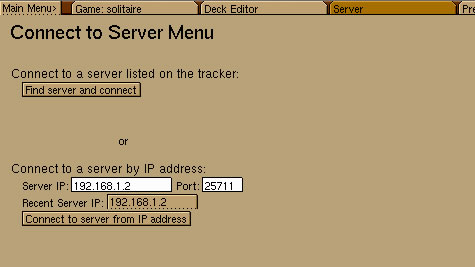
1. Click the Server tab at the top of Lackey.
2. Click the Refresh Server List from Tracker button. This will find all the servers. For now, there is just the Official Lackey Server.
3. Click the Connect to Server From Tracker button. This will actually connect to you the Official Lackey Server.
You should now be connected to the Official LackeyCCG Server.
To Join a game:
Just click on the game you wish to join and click the Join Selected Game button.
To Host a game:
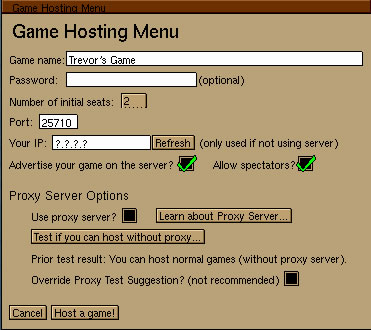
1. Click the Host a Game... button. This will bring up the Host menu.
2. To host a game, simply click the Host button.

Hosting Troubleshooting:
If people are unable to connect to games you host, there might be a problem with how your router or firewall is configured. While you are connected to the server, open the Host menu and click the Test It button next to "Do I Need Proxy to Host?". If it says you need to use the proxy server, you do indeed have an issue with how your router or firewall is configured. There are 3 ways to fix this. They are, in the order of preference:
1. Properly configure your router and/or firewall to allow your LackeyCCG to host.
By default, Lackey uses port 25710 for hosting games, so this is the port you should open. If you cannot open this port for some reason, you can set a different port for Lackey to use that you can open. All routers and firewalls are different, so I can't give step-by-step instructions on how your router/firewall should be configured.
If you are having difficulty with your firewall, try temporarily disabling it and then running the "Do I Need Proxy to Host?" test again. There is an excellent tutorial on how to properly configure your router/firewall at http://www.azureuswiki.com/index.php/NAT_problem. This tutorial was written for a program called Azureus, but the instructions it gives work great for LackeyCCG too. Just make sure you remember the default port number LackeyCCG uses is 25710, and that webpage will refer to a different port number that Azureus uses as its default port number.
2. Have your opponent host and you connect to them.
If you are unable to forward the correct ports, see if your opponent can host the game. Have them run the "Do I Need Proxy to Host?" test if they don't know if they are able to, or if you have an error connecting to a game they are hosting.
3. If all else fails, you can host a game using the Proxy Server.
Using the proxy server is easy. While you are connected to the Lackey Server, open the Host menu. Check the box next to "Use proxy server?". Then Host.
Remember that idealy you should figure out how to configure your router/firewall so that you don't need to use proxy server.
|
Table of Contents |